Change prices safely
How drafts, activation, and rollback work, plus every action in the rate sheet menu.
Rate sheets are versions. One of them is live and prices every quote; every other one is a draft that changes nothing until you activate it. Activating a draft is how your prices change, and activating the previous sheet again is how you undo it.
Go to Settings, then Pricing. The selector at the top right sits on all four tabs, and so does the actions menu beside it.
The live rate sheet and drafts
The selector lists every rate sheet you have and names the one you're looking at. The live sheet carries a green Live badge, both in the list and on the selector itself. Only one sheet is live at a time.
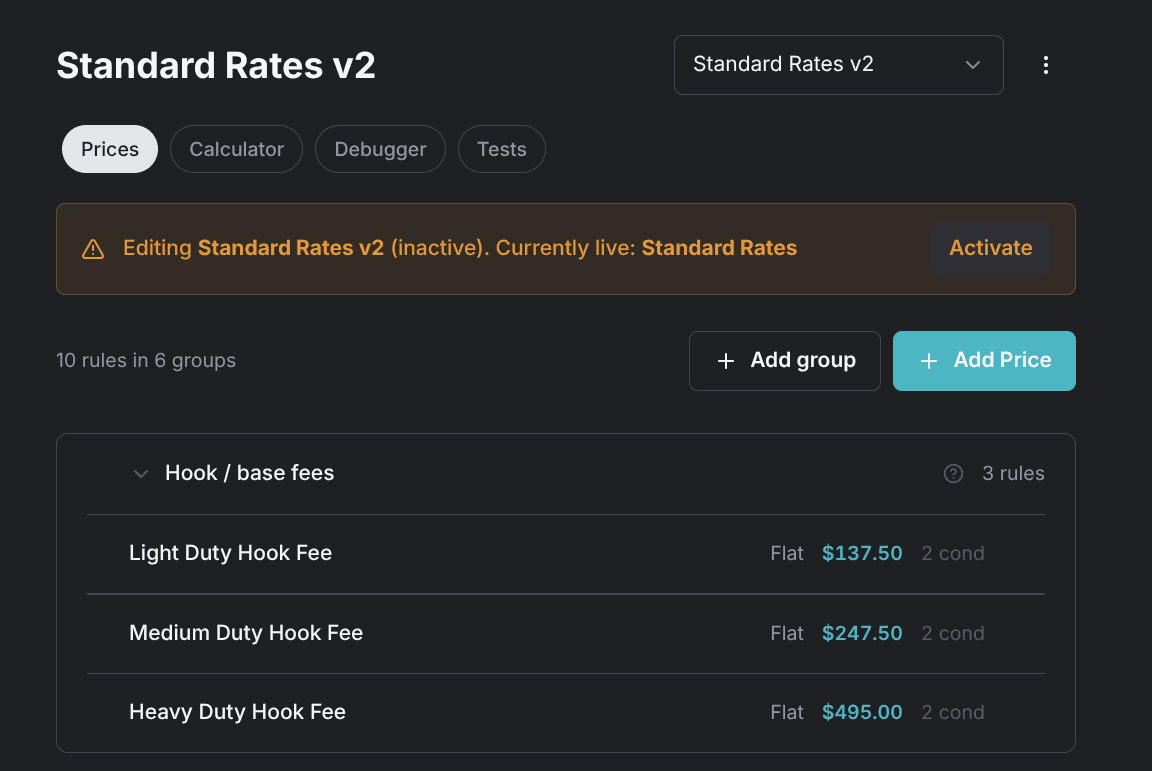
Open any other sheet and an amber banner appears below the tabs, naming the draft you're editing and the sheet that's currently live, with an Activate button beside it. Everything below the banner then acts on the draft — you're changing a copy, not the prices your customers hear.
Activating switches the live sheet instantly: the next quote anyone runs uses the new prices. Jobs that already exist keep the price they were quoted, so activating never re-prices work in progress.
A draft prices nothing at all. No quote, no phone quote, and no job touches it until you activate it. Testing is the only way to see its numbers.
Rolling back is the same move in reverse: select the sheet that was live before and activate it. Nothing is overwritten, so every earlier version keeps its groups and rules.
Making a change
Copy, edit, test, activate. The live sheet stays untouched the whole time, which is what makes the change reversible.
Copy the live sheet
Open the actions menu and choose Duplicate Profile. The copy is a draft that takes the original's name plus (Copy). For a sheet generated with AI, Update with AI does the same thing from a description of the change. The draft takes a version suffix, for example Standard Rates v2. See Create your rate sheet.
Edit the copy
Select the copy in the selector, then add, edit, and reorder prices as usual. The amber banner stays up while you work as a reminder that these prices aren't live.
Test the draft
With the draft still selected, the Calculator and Debugger run against it. Price the jobs you care about most and compare the totals to today's. See Check a price and trace a quote.
Activate
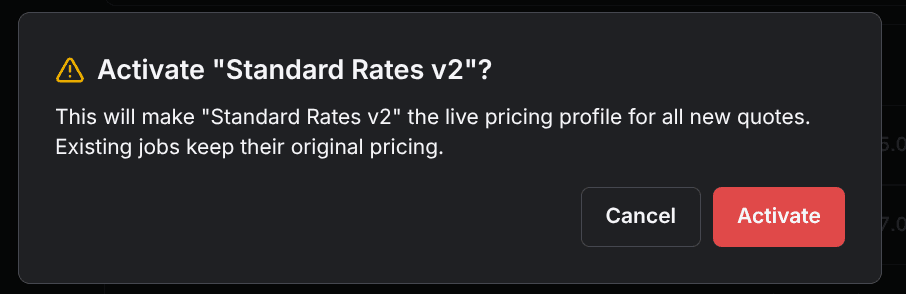
Click Activate in the banner. The confirmation dialog names the sheet, states that it becomes the live sheet for all new quotes, and repeats that existing jobs keep their original pricing. Confirm, and the switch is done.
Profile actions
The three-dot button beside the selector opens the actions menu, listed here in on-screen order. Most items act on the sheet currently selected; Generate with AI, New Profile, and the sync item create a new sheet instead.
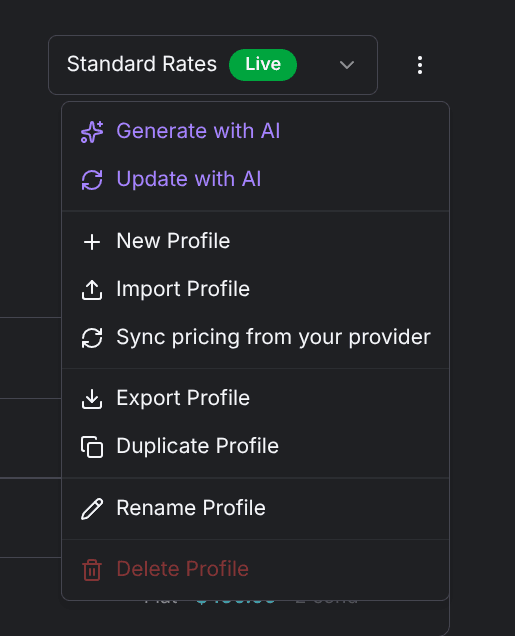
- Generate with AI — describe your pricing in plain English and get a whole new sheet from it.
- Update with AI — describe a change to the selected sheet and get a new draft with a version suffix, for example Standard Rates v2. Available only for sheets that were generated with AI; any other sheet shows a message saying it can't be updated this way.
- New Profile — creates an empty draft from a name you type. The name is required.
- Sync pricing from your provider — the item is named after the dispatch provider you're connected to, and appears only when that connection is set up for pricing sync.
- Export Profile — downloads the sheet as a file: its groups and its rules with their conditions.
- Duplicate Profile — creates a draft copy, named for the original plus (Copy).
- Rename Profile — changes the sheet's name and nothing else. The name can't be empty.
- Activate Profile — makes the selected draft live. It's shown only for drafts, and unlike the banner button it activates without a confirmation step.
- Delete Profile — permanently deletes the sheet and all its rules. It's disabled for the live sheet and for your only sheet, so the prices you're quoting from can't be deleted out from under you.
Once the live sheet is the one you want customers to hear, turn on Price quotes so the AI Agent can quote it on the phone.