Create your rate sheet
Your first rate sheet: synced from your provider, generated with AI, or built from scratch.
A rate sheet is the complete set of prices your quotes are built from. On screen it's called a pricing profile, and How pricing works covers what one is made of. Your first one comes from one of three places, and each path ends with a sheet that's already live.
Go to Settings, then Pricing. If your dispatch provider is connected, a rate sheet is most likely already there — start from it. Until one exists, the page offers a sync button when your provider connection supports pricing, plus Generate with AI and Start Fresh.
Your first sheet is live immediately
The first rate sheet you create is active the moment it exists, so every quote uses it right away. Run it through Check a price and trace a quote before you turn on phone quotes for the AI Agent. Every sheet after the first is created as a draft instead, which is what makes safe changes possible later. See Change prices safely.
Start from your provider's rates
When your provider connection supports pricing sync, TowPilot builds your first rate sheet for you: the first data sync after you connect converts the rate items in your provider account into a working sheet.
- Fees, mileage, and hourly items — sorted into their own groups, so each becomes its own line of the bill.
- Account-specific prices — the special rates a provider account carries come across as higher-priority rules, so jobs billed to that account price at those rates instead of your retail ones.
This sheet is your starting point. Read it through, fix anything the conversion got wrong, and add what your provider account never held, rather than generating a new sheet from scratch.
If no sheet was built — say your provider API key went in after the first sync — the empty Pricing page offers a sync button naming your provider, which runs the same conversion on demand.
Only the first sync builds a rate sheet. Later syncs keep your provider's rates current for invoicing but leave your rate sheet alone, so edits you make are never overwritten.
Generate with AI
With no provider pricing to sync, this is the fastest path: you describe your prices in plain English and the generator turns them into groups and rules.
Describe your pricing
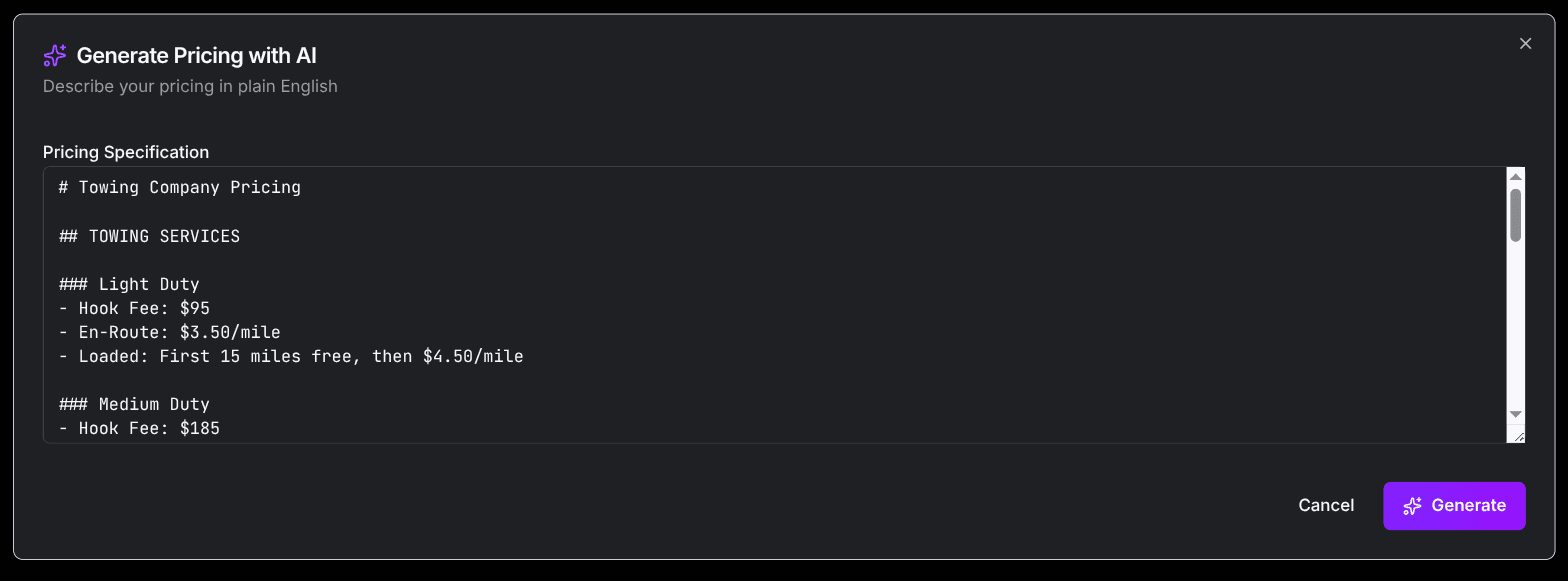
Click Generate with AI. The Pricing Specification box opens prefilled with a full example sheet: towing rates by duty class, roadside services, hourly winch-out and recovery, and a fuel surcharge. Edit that template to match what you charge, or delete it and write your own prices in your own words.
Run the generation
Click Generate and wait for it to finish.
Review the preview
The result opens on a banner saying whether generation succeeded, with counts of the Groups and Rules it built. To change something, type the correction in Need changes? (for example Make hook fee $120) and generate again.
Import it
Click Import. The groups and rules are saved as a rate sheet, and nothing is created until you do this.
Once a sheet exists, Update with AI in the actions menu (the three-dot button beside the sheet selector) reruns the generator with your requested changes, such as Add 15% night surcharge. It never edits the sheet you're viewing. Instead it creates a copy with the next version number on the end of the name: Standard Rates becomes Standard Rates v2, and Standard Rates v2 becomes Standard Rates v3. That copy stays a draft until you activate it. The option only works on sheets the generator created; on any other sheet it reports that the sheet wasn't created with AI.
Start fresh
Start Fresh, under Or use other methods, creates an empty sheet named Standard Rates. Nothing prices until you add rules to it.
Whichever path you took, the next step is the same: add and organize prices on the Prices tab.