Fine-tune prices with custom rules
Every calculation method and every condition on the custom price form, including account pricing.
A custom rule is one price with its own calculation and its own conditions. All of a rule's conditions must match for the rule to apply, and a rule with no conditions applies to every job.
Go to Settings, then Pricing, click Add Price, and pick Custom Rule. Name is what appears on the quote when the rule matches, and Description is a note for you.
Calculation types
Calculation type decides how the rule calculates its amount. Choosing one swaps in the fields that method needs.
| Method | What it charges | Use it when |
|---|---|---|
| Flat Amount | A fixed dollar amount | The charge doesn't move with distance or time: a hook fee, a gate fee |
| Per Mile | A rate times one measured distance | You bill one leg of the trip at a single rate |
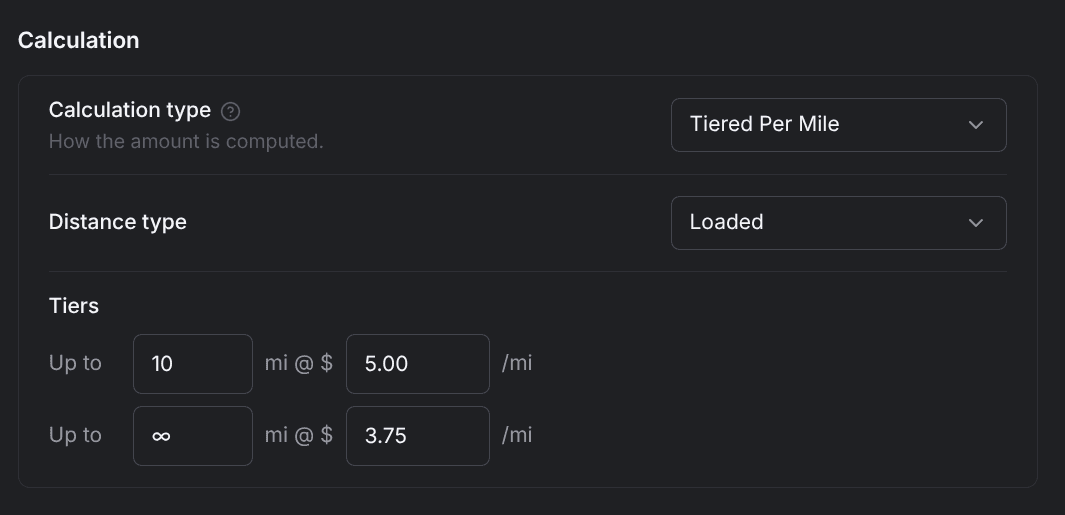
| Tiered Per Mile | Different per-mile rates by distance band | Long tows earn a different rate than short ones |
| Hourly | A rate times the job's estimated hours | Recovery and winch-out work billed by time |
| Surcharge % | A percentage of what's already been charged | Fuel, after-hours, and holiday markups |
The fields below appear only for the methods named with them.
- Amount (Flat Amount) — the fixed dollars this rule adds, in steps of $0.01, for example $95.00. Negative amounts are rejected.
- Rate (Per Mile, Hourly) — dollars per mile, or dollars per hour on an Hourly rule. Zero or more, for example $4.00 per mile or $175.00 per hour.
- Distance type (Per Mile, Tiered Per Mile) — which measured distance the rate multiplies: Loaded, En route, or Deadhead.
- Tiers (Tiered Per Mile) — rows reading Up to [10] mi @ $ [0.00] /mi, at least two of them. The last row takes ∞ to cover everything past the final cap. Tiers are marginal, so each band's rate applies only to the miles inside that band.
- Time basis (Hourly) — Estimated Hours, the only option. On an Hourly rule it sits above Rate.
- Minimum hours (Hourly) — the fewest hours the rule bills, in steps of 0.5, for example 1.5 (0 by default).
- Percentage (Surcharge %) — 0 or more, in steps of 0.1, for example 10%.
- Apply to (Surcharge %) — Service Total (all service charges) or Subtotal (running total so far). Either label prices the surcharge as a percentage of the running subtotal at the moment the rule runs.
An Hourly rule multiplies its rate by the job's estimated hours. Estimated hours is the driving time of the trip's legs, not the time your driver spends working on scene. Minimum hours is the lever for scene work: the rule bills the greater of the two.
Take a job with 0.6 estimated hours on a rule whose Minimum hours is 1.5. The rule bills 1.5 hours, so at a $175.00 rate the line comes to $262.50.
That difference catches people out, so read Avoid pricing traps before you price recovery work by the hour.
The three trip legs
Every rule states which part of the trip it charges for, and mileage rules multiply one of the three measured distances.
- Charge applies to — which leg the charge belongs to: Not Applicable, Loaded, En route, or Deadhead. Flat fees and surcharges use Not Applicable.
- En route — from your base to the pickup.
- Loaded — from the pickup to the drop-off, with the vehicle on the truck.
- Deadhead — from the drop-off back to your base, empty.
Roadside services (jump start, lockout, fuel delivery, and tire change) take no drop-off address, so there is no loaded leg to measure.
A rule that multiplies loaded miles adds nothing on a roadside job. Charge roadside work with a flat amount, en-route mileage, or hours.
Conditions, field by field
Conditions decide when the price applies. Click Add to add one; a rule with none reads No conditions — applies to all jobs. Each condition is a field, an operator, and a value.
- Vehicle type — the class the job's vehicle falls into, prefilled at light duty. A rule can match four classes: motorcycle, light duty, medium duty, and heavy duty.
- Service type — the service that was requested, prefilled at towing: towing, jump start, fuel delivery, recovery, lockout, tire change, winch out, or cleanup.
- Loaded — miles from the pickup to the drop-off, prefilled at more than 10 miles.
- En route — miles from your base to the pickup, prefilled at more than 10 miles.
- Deadhead — miles from the drop-off back to your base, prefilled at more than 10 miles.
- Estimated hours — the job's estimated duration in hours, in steps of 0.5, prefilled at more than 1. Hourly rules read the same value.
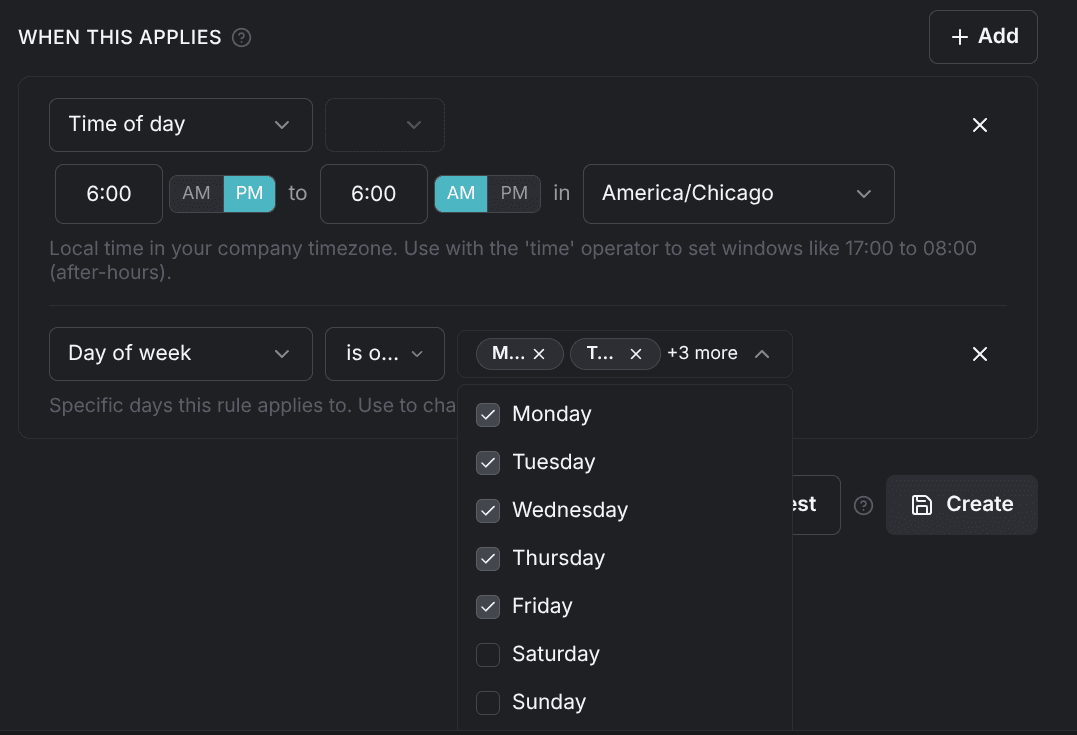
- Time of day — a window with a start, an end, and its own timezone, prefilled at 6:00 PM to 6:00 AM. The window is inclusive at both ends and may span midnight.
- Weekend — Yes (weekend) or No (weekday), true on Saturday and Sunday in your company timezone.
- Holiday — Yes (holiday) or No (regular day), true on US federal holidays in your company timezone.
- Day of week — one day, or several days at once. It's prefilled with Monday through Friday.
- Account — the account the job is billed to. The picker includes accounts from your partner companies.
- Pickup location — where the job is picked up, checked against an area you draw on a map.
- Dropoff location — where the vehicle is dropped off, checked the same way.
Each field offers the operators that suit it. Vehicle type, Service type, Account, and Day of week take = or is one of; Weekend and Holiday take = only. The mileage and hours fields take >, <, ≥, ≤, and =, and Time of day takes between times. The two location fields take in area or not in area.
Location conditions
Pick Pickup location or Dropoff location and the value becomes a map card. Click the card to open the Pricing Area dialog and set the area: use a radius around your base, your city limits, or your county limits, or switch to Custom and click the points yourself. An area needs at least three points, and you can't save the rule until it has them.
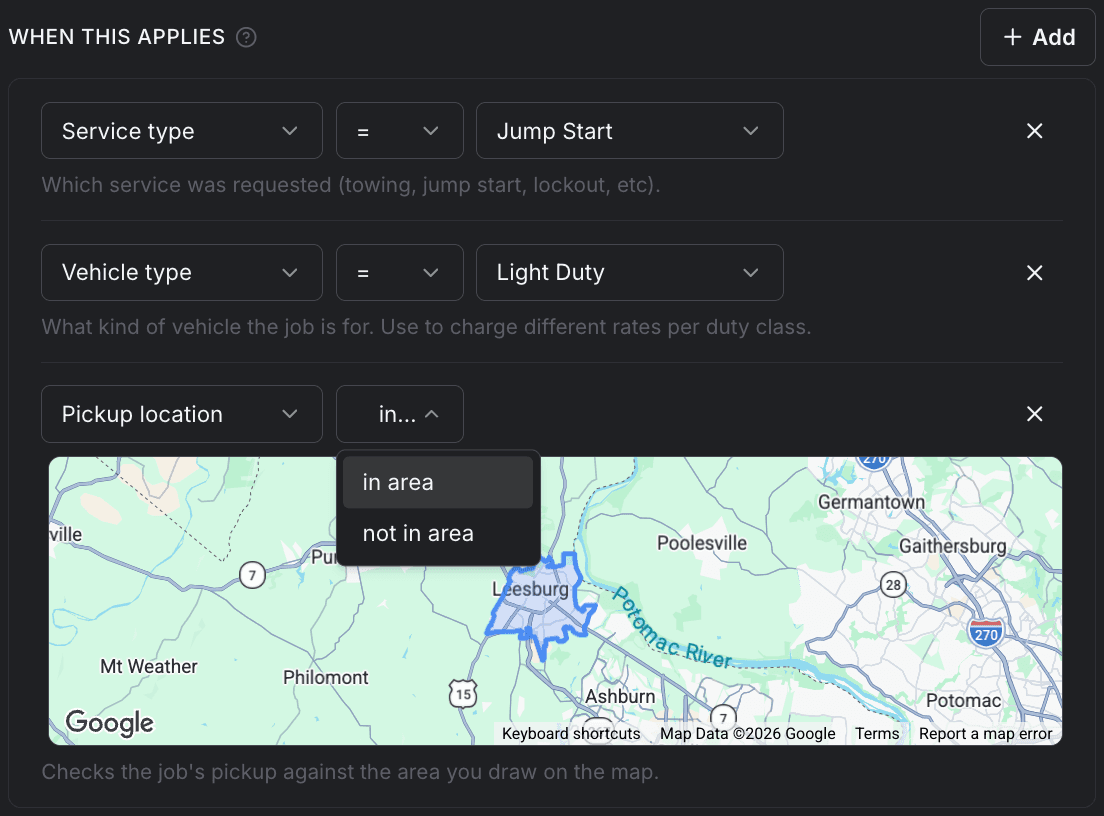
in area matches when the job's point falls inside the area you drew, and the boundary counts as inside. not in area matches when the job has that point and it falls outside.
A job with no coordinates matches neither operator. Roadside services take no drop-off address, so a Dropoff location condition never matches them, in area or not. Condition roadside prices on Pickup location.
Account pricing
To give a motor club, a dealer, or a rotation account its own rate, condition the rule on Account. Put that rule above your retail rules in the same group. Inside a group the first rule whose conditions all match sets that line of the bill, so the account rule has to come first. See How pricing works for the model.
A retail rule sitting above an account rule wins every time, and the account is billed your retail rate. Drag account rules to the top of their group and re-run the quote to confirm.
A quote can also name an account instead of picking one. A name that doesn't match an account is ignored and the job prices as retail.
Editing and testing a rule
Open an existing rule from the Prices tab: use the row's menu and choose Edit rule. The edit page is the same form under the heading Edit Price, and Update saves your changes.
Test prices the rule against a sample job and shows the result inline as Test: $X.XX. A Surcharge % rule shows what it adds on a $100 subtotal, so a 10% rule reads +$10.00 (on $100). The sample job matches your location conditions, so an area rule tests as a job in the right place.
A single rule's test result is a sanity check, not a quote. Price a full job against the whole rate sheet in Check a price and trace a quote.