Check a price and trace a quote
Check what a job would cost and see exactly which rules produced the number.
Two tabs price a job you make up. The Calculator gives you the number a customer would hear, and the Debugger shows every rule behind it.
Both sit under Settings, then Pricing, and each one prices against the rate sheet named in the profile selector at the top of the screen.
Getting a quote with the calculator
Go to Settings, then Pricing, then Calculator, fill in the job, and click Get Quote.
- Service Type (required) — Towing, Jump Start, Fuel Delivery, Recovery, Lockout, Tire Change, Winch Out, or Cleanup.
- Pickup (required) — start typing and pick the address from the list.
- Dropoff (required) — the field disappears for jump start, fuel delivery, lockout, and tire change, because those services have no destination.
- Year (required) — from 1900 to 2100, for example 2024.
- Make (required) — chosen from the list.
- Model (required) — free text, for example Civic or F-150.
- Account (optional) — the billing account this job goes to, so your account rules can match. Leave it empty to price the job at retail.
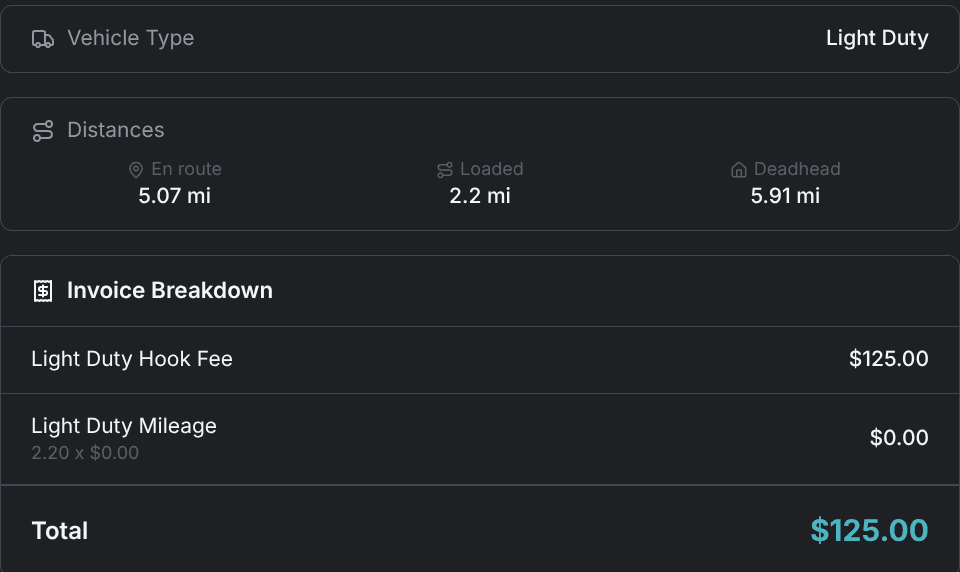
The result opens with the vehicle type worked out from the year, make, and model you typed: Light Duty, Medium Duty, Heavy Duty, or Motorcycle. A vehicle that can't be placed counts as medium duty.
Distances shows the legs measured for this job, in miles: en route to the pickup, loaded to the drop-off, and deadhead back to your base. A leg that measures 0 is left out, so a roadside service shows no loaded column at all.
Invoice Breakdown lists one row per charge and Total at the bottom, and a charge covering more than one unit also shows its quantity and price. Groups where nothing matched leave no row. The total is the whole-dollar price a customer is quoted. See How pricing works.
Turn on Show rules that matched under the total to read the full rule-by-rule trace without leaving the page.
Tracing every rule with the debugger
Go to Settings, then Pricing, then Debugger. It takes the same form as the calculator; run it with Debug Rules.
The trace lists every price group in the order it ran, marked Matched or No Match, with the rules inside it and what each one added. Every rule carries one of three statuses.
| Status | What it means |
|---|---|
| Matched | Every condition passed, and this rule set the group's charge. |
| Not matched | At least one condition failed. |
| Skipped | An earlier rule in the group matched first, so this one never ran. |
Open a rule to see its conditions. Each condition shows what it required next to what the job actually had, so a failed rule names the fact that failed.
A matched rule also shows its calculation — the method, the amount added, and whatever figures that method worked from, such as a flat amount or a surcharge percentage. A rule with no conditions says so, and always matches when it's reached.
The Context Used card holds the values the quote actually ran on: service type, vehicle type, the three distances, and estimated hours. It also carries your local time, the day of the week, and whether the day is a weekend or a US federal holiday. Read it first when a price looks wrong. Rules can only work from what's in that card.
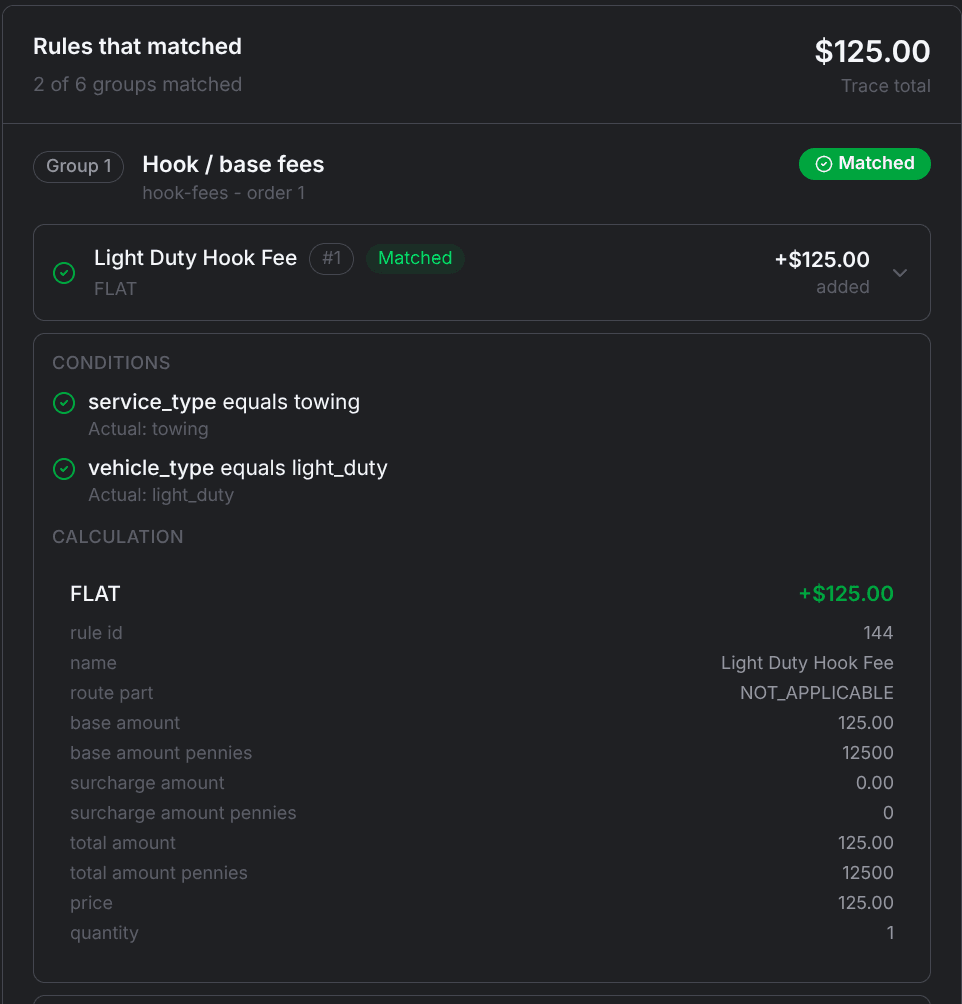
The trace total is the exact sum of the rules, down to the cent. The calculator's Total is that same number rounded up to the next whole dollar, so the two can differ by up to 99 cents.
When the trace shows a rule that never fires, or one firing on jobs it shouldn't, fix its conditions on the custom price form. When the total itself looks absurd, Avoid pricing traps covers the usual cause.
Testing a draft
Both tabs price against whichever rate sheet the profile selector is showing, not only the live one. Pick a draft there and an amber banner across the top confirms you're working on an inactive sheet.
Run the calculator on the jobs you quote most often and read the traces until every total is right. Activate the draft only after that.
The price stored on each job
Every new job is priced automatically against the live rate sheet the moment it's created, and that price is kept with the job alongside its full trace.
The price is written only at job creation. A job whose pickup and drop-off arrive in a later edit never gets one.
A stored price reflects the rate sheet as it was when the job was created, and changing prices later never updates it. Re-run the same job in the calculator to see what it would cost today.
When a job has no stored price, these are the reasons, in the order they're checked:
- The job has no pickup location.
- You haven't created a rate sheet yet.
- The live rate sheet has no price groups.
- Your company has no base coordinates, so no distance can be measured.
- A service that needs a drop-off doesn't have one.
- Past all of those, the job was probably created without a service type, or the background task failed.
The stored price uses the job's weight class when it has one. Otherwise it classifies the vehicle from its year, make, and model, falling back to medium duty when neither settles it.
Once a draft prices the way you want, Change prices safely covers activating it and rolling back.