Dispatch settings
What the agent may do on dispatch calls, plus ETA, weight limits, and escalations.
Dispatch settings decide who takes calls asking for a tow or roadside service, and what the AI Agent is allowed to do on them. Three of the powers here — sending jobs to drivers, cancelling jobs, and quoting prices — are off by default. The agent does none of them until you turn them on.
Open AI Agent in the left-hand navigation, then select Dispatch Settings.
Call handling
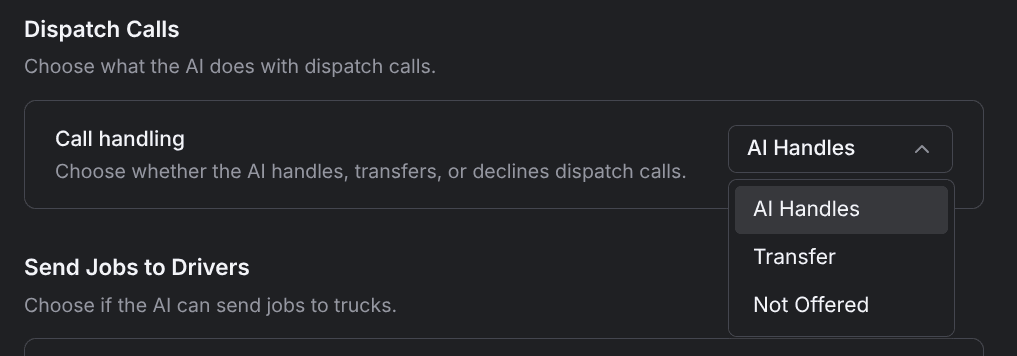
One three-way select decides who takes dispatch calls.
| Option | What happens |
|---|---|
| AI Handles | The agent takes the call, collects the details, and creates the job. |
| Transfer | Every dispatch call goes to your team. |
| Not Offered | The agent tells callers you don't offer dispatch service. |
The rest of the page appears only when AI Handles is selected. Which services the agent covers, and which vehicle classes it handles within each one, is a separate choice. See Choose what the agent handles.
Send jobs to drivers
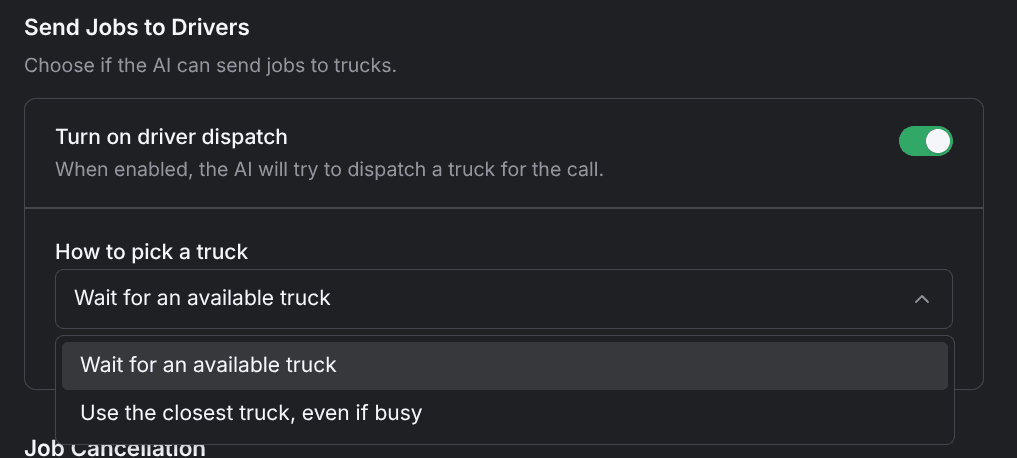
Turn on driver dispatch (off by default) lets the agent send a truck for the call. Leave it off and the agent still creates the job, but it waits for your team to assign a driver.
With it on, How to pick a truck offers two options:
- Wait for an available truck — the job goes to a truck that's free (the default).
- Use the closest truck, even if busy — the job goes to the nearest truck, whether or not it's already on a call.
If no truck can take it, the job stays waiting for your team.
Job cancellation
Let the AI cancel jobs (off by default) lets the agent cancel a job when the customer calls back, for example when the caller says they no longer need the tow. With it off, a call-back about an existing job leaves the job untouched.
For everything the agent won't do on a call, see How the agent handles calls.
Price quotes
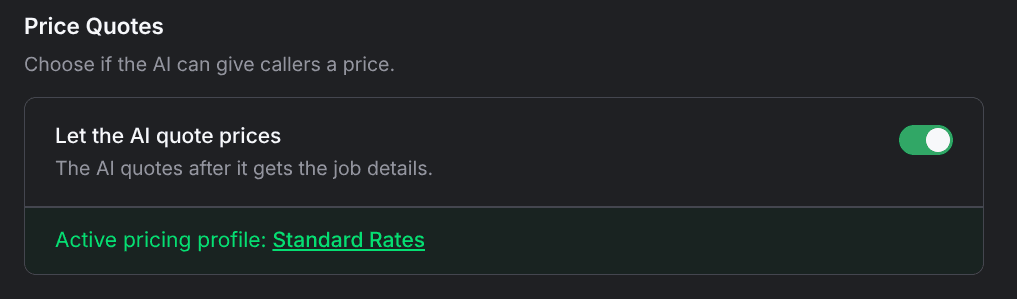
Let the AI quote prices (off by default) lets the agent give callers a price once it has the job details. Quoting reads whichever rate sheet is live. With quoting on but no rate sheet created yet, the card shows an amber No active pricing is set up banner. Once a rate sheet exists, a green Active pricing profile banner names the live one.
Build the rate sheet first (see How pricing works), then turn quoting on after the live sheet is tested, as described in Change prices safely.
Default ETA
Default ETA is the arrival estimate the agent gives callers. Pick a preset range: 15–30, 30–45, 45–60 (the default), 60–90, or 90–120 minutes, or 2+ hours. Pick Custom to type your own wording, for example within the hour.
The agent says the ETA on the call, and the confirmation text repeats it when customer dispatch notifications are on.
Weight limits
Two fields set where one duty class ends and the next begins:
- Light duty max (lbs) — 10,000 by default.
- Medium duty max (lbs) — 26,000 by default.
Anything above the medium maximum is heavy duty, and both fields take a positive number. The agent measures each caller's vehicle against these two numbers, so the per-class choices on your service pages follow from what you set here. See how vehicles are classified.
Escalation scenarios
Enable escalation scenarios (off by default) hands a call to a person instead of dispatching it when a situation you've described comes up. Enter one scenario per line, for example Caller says someone is hurt.
One line is required while the toggle is on, up to 20 lines of 180 characters each. Escalated calls ring the number on Call transfers.
Impound calls have their own handling mode and their own hours. See Impound settings.