Set up your agent
Your agent's greeting, company profile, hours, and service area, plus a first test call.
The AI Agent answers your phone line using the details you give it here: its greeting, your company profile, your hours, and the ground you cover. All of it lives under AI Agent in the left-hand navigation.
One page here saves in parts: on Company Settings, your company profile and hours save with Save Company Profile, the map with Save Service Area, and the After-hours dispatch choice belongs to the agent, so it saves with the Save changes bar at the bottom.
Your agent's phone number
Your agent's number sits at the top of the AI Agent page. Click it to copy it.
Choosing your greeting
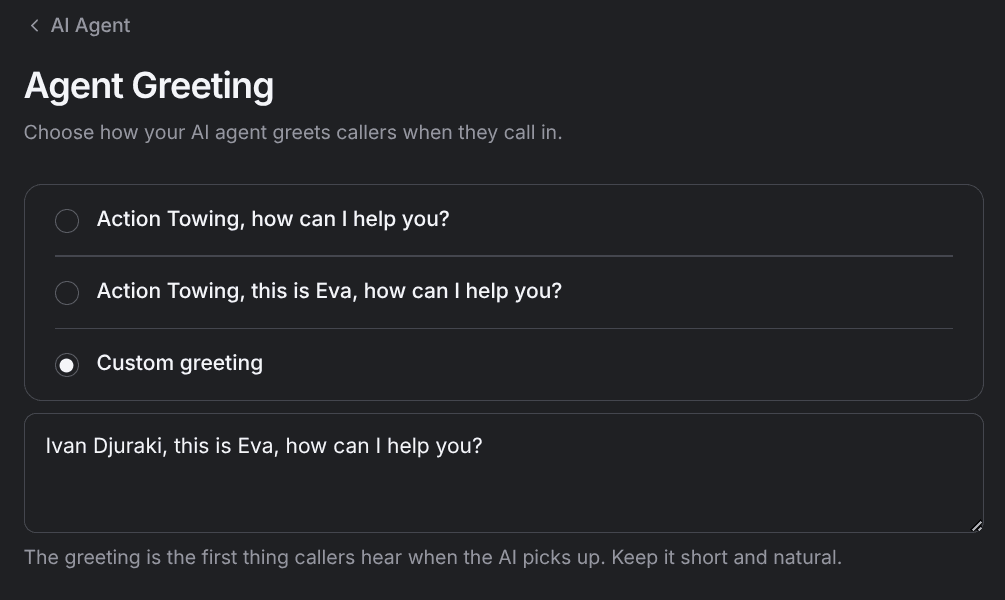
Go to AI Agent, then Agent Greeting. The first two options are shown as the exact words callers hear, with your company name filled in for you:
- Action Towing, how can I help you?
- Action Towing, this is Eva, how can I help you? (Eva is your agent's name, supplied by TowPilot. The greeting shows whatever name your agent has.)
Custom greeting opens a text box for your own wording, up to 600 characters. It's the first thing callers hear, so keep it short and natural.
Company details
Go to AI Agent, then Company Settings. The first cards on this screen are what the agent knows about you.
- Company Name (required) — the name the agent says on calls, including in the greeting.
- Address (optional) — your physical location. Start typing and pick your address from the suggestions. Street, city, state, and ZIP fill in from the one you choose.
- Timezone (required) — sets how your business hours and scheduling are read. A wrong timezone shifts every open and close time the agent works from.
Business hours
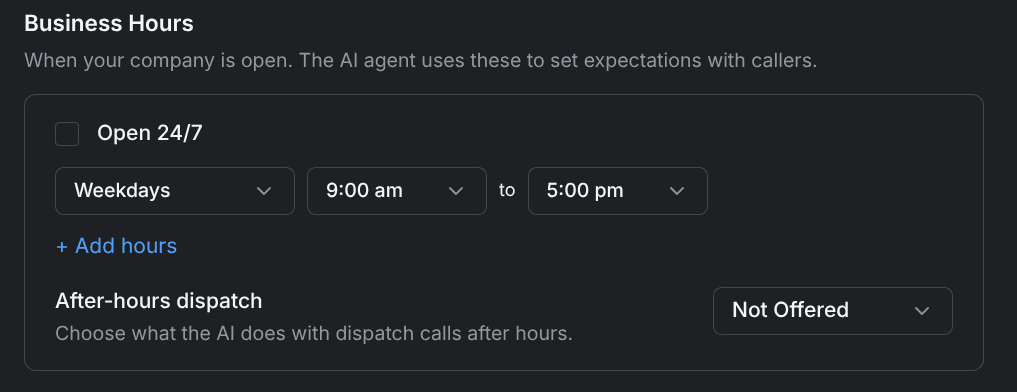
Business hours tell the agent when you're open so it can set expectations with callers. Open 24/7 is a checkbox on the Business Hours card and is checked by default; with it checked, the agent never tells dispatch callers you're closed.
Unchecking it opens the hours editor. Each row covers a day group (Weekdays, Weekend, every day, or a single day) with a start and end time. Add a second row for the same days to cover a split shift, and remove any row you don't need.
Your impound lot keeps its own hours, set separately on Impound settings.
After-hours dispatch
Once you set hours, an After-hours dispatch dropdown appears with exactly two choices for dispatch calls that arrive when you're closed:
- Transfer — the call goes to your team on the number set under Call transfers.
- Not Offered (the default) — the agent tells callers you're closed.
With Open 24/7 checked there are no after-hours, so the after-hours choice never takes effect.
Service area
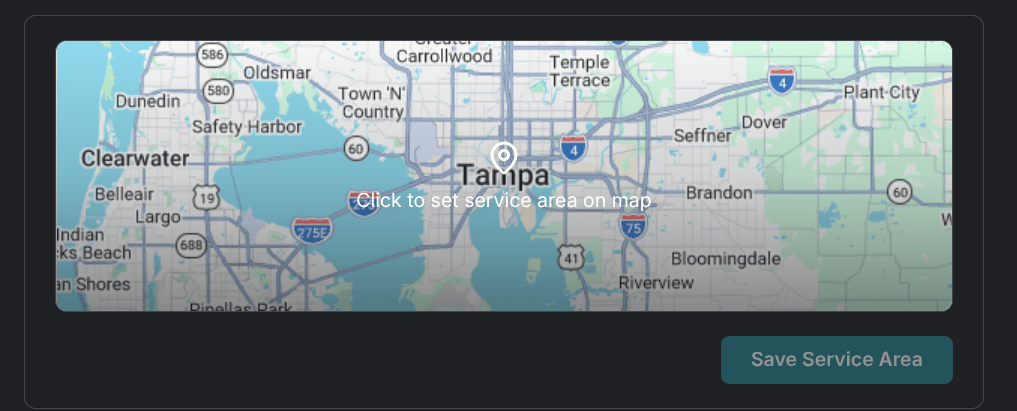
The Service Area card sits below your company profile and saves with its own Save Service Area button. Open the editor to draw the area:
- Center point — the address the area is measured from.
- Distance — how far out the area reaches, in miles, from 1 to 500 (for example, 25 miles).
- Quick presets — one-click radius sizes of 10, 25, 50, or 100 miles, plus your city and your county.
- Custom area — click the map to drop pins around your boundary. Undo pin removes the last one and Clear drawing starts over.
Making a test call
Hear what your callers hear before anyone else does.
Call your agent
Dial your agent's number from your own phone, or use the Call button on the AI Agent page.
Ask for a tow
Give a name, a callback number, a vehicle, and a pickup address, the way a real caller would.
Confirm the details
The agent reads back what it collected. Correct anything it heard wrong and confirm.
Find the job
Open your dispatch software and check the job is there. By default it waits for your team to assign a truck; if you've turned on driver dispatch, it may already have a truck assigned.
Forwarding your business line
Your agent answers calls that reach its own number, so your business line has to point at it. Set that forwarding up with your phone carrier — it's a carrier setting, not a TowPilot one.
Make the test call before you forward your line. Once your business number forwards, every real customer reaches the agent with the greeting and service area exactly as you left them.
Next, decide which services the agent takes and which it hands to your team in Choose what the agent handles.