Settings and going live
The global default, the processing delay, driver dispatch, operating hours, and going live.
Everything on the General tab applies to every request Digital Dispatch handles: what happens when no rule matches, how long it waits before deciding, and when it's active at all. Go to Settings, then Digital Dispatch. The page opens on the General tab; rules sit on the separate Rules tab.
Global defaults
The Global Defaults card sets the behavior for a request that no rule matches. Until you create your first rule, the card reports that no dispatch profile exists. Creating a rule sets one up.
Default Action offers three choices.
| Option | What happens | Choose it when |
|---|---|---|
| Accept with Default ETA (default) | Digital Dispatch accepts the request and answers with the Default ETA below. | You want unmatched work taken rather than lost. |
| Reject Automatically | Digital Dispatch declines the request. | Anything your rules don't cover is work you can't run. |
| Skip (Let Human Decide) | Nothing is sent to your dispatch provider; a dispatcher handles it. | You want a person to judge every unmatched request. |
- Default ETA (required with Accept with Default ETA) — the ETA promised on an automatic acceptance, from 1 to 1440 minutes (24 hours); 60 by default. The field appears only when Accept with Default ETA is selected.
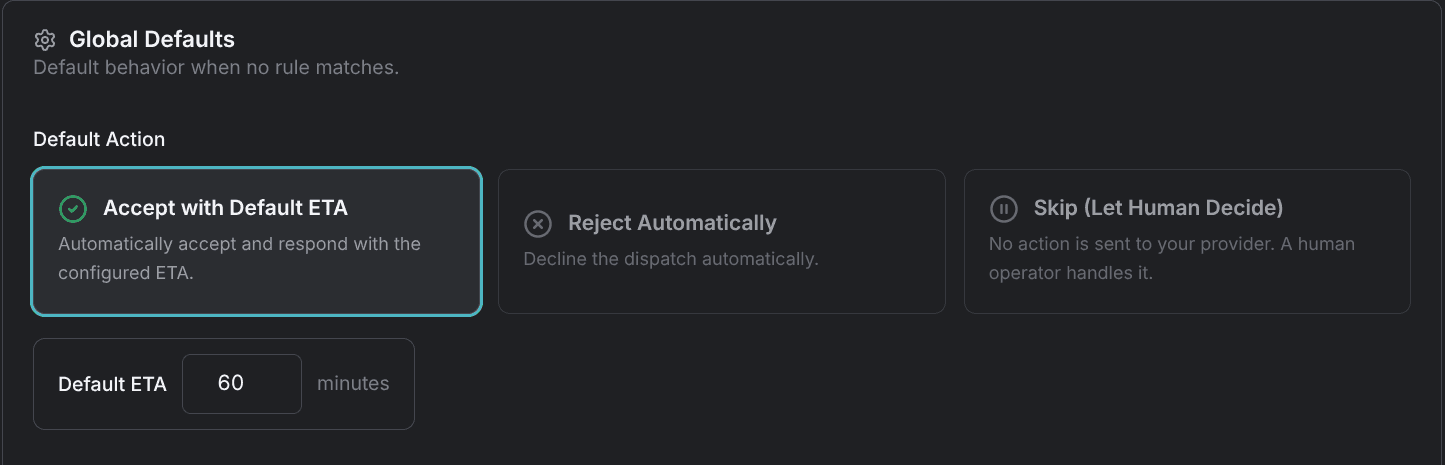
Save Defaults saves the default action, the delay, and driver dispatch together.
Delay processing
Delay Processing holds each incoming request for a set number of seconds before Digital Dispatch decides, giving your dispatchers a chance to cancel or change it first. With the toggle off, Digital Dispatch decides as soon as a request arrives (the default).
- Wait n sec before processing — from 10 to 240 seconds. Set 30 to 60 seconds so your dispatchers have time to step in before the decision goes out.
The delay postpones the decision; it doesn't cancel it. If a dispatcher accepts or rejects the request during the wait, their answer stands and Digital Dispatch sends nothing.

Dispatch directly to driver
Dispatch Directly to Driver assigns an accepted request to the closest eligible driver, so your team doesn't assign it by hand. It's off by default.
- How to pick a truck — appears once the toggle is on:
- Wait for an available truck — picks the closest driver who isn't already on a job (the default).
- Use the closest truck, even if busy — picks the closest driver whether or not they're on a job.
The assignment goes to a driver, not to a truck record, and it happens once the job comes back from your dispatch provider. Digital Dispatch re-checks who's available at that moment, assigns the driver or the closest eligible replacement, texts them the dispatch, and moves the job to dispatched. Nothing is assigned while you're in Learning mode, because no acceptance is actually sent.
Operating schedule
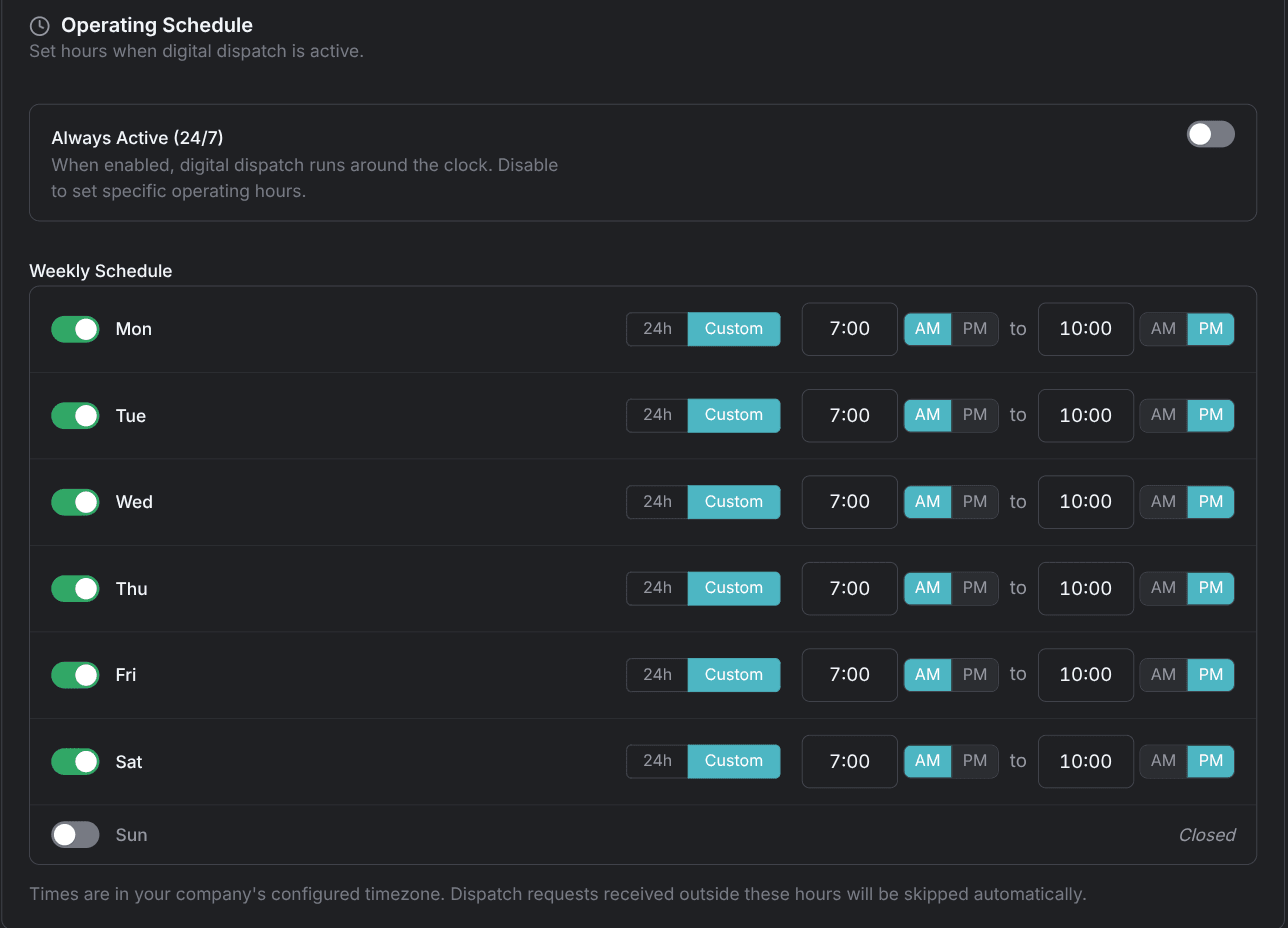
Operating Schedule sets the hours Digital Dispatch is active. Outside those hours no rule runs, nothing is sent to your dispatch provider, and the request is left for your team.
- Always Active (24/7) — on by default; Digital Dispatch runs around the clock. Turn it off to set specific hours.
- Weekly Schedule — one row per day, Mon through Sun, shown once 24/7 is off. Each row carries a day switch (switched off, the row reads Closed), then a 24h or Custom choice:
- 24h — active all day.
- Custom — a start and an end time, 8:00 AM to 6:00 PM the first time you pick it.
Overnight spans work: an end time earlier than the start covers the night, so 6:00 PM to 6:00 AM runs a night shift. Times are in your company's timezone. The first time you turn 24/7 off, the grid starts as Monday through Friday at 24h with Saturday and Sunday closed.
A request that arrives outside your hours leaves no row in the decision history at all. See requests that never appear in history.
Going live
Digital Dispatch starts in Learning mode, where it checks and records every request but sends nothing. Going live is a four-step move from the mode banner at the top of the General tab.
Build your rules in Learning mode
Write the rules you want and leave the mode alone. Every request is still checked and recorded, so you build a history to judge before anything reaches your dispatch provider.
Review the recorded decisions
Read the decision history until the recorded decisions match what your team would have done. Open individual requests to see which rules failed and why.
Click Go Live
The Go Live button sits on the mode banner. It stays disabled until at least one rule exists. Digital Dispatch won't go live with no rules to follow.
Confirm
A dialog asks you to confirm that your rules are configured correctly. Confirm it and decisions start going to your dispatch provider immediately.
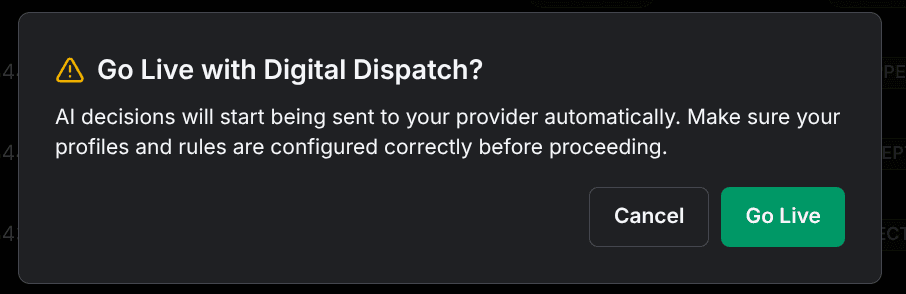
While you're live, the last remaining rule can't be deleted. Switch to Learning Mode on the same banner takes you back anytime: recording continues, sending stops.
Live decisions reach your dispatch provider the moment they're made, and a wrong rule order rejects real work. Go live only after the recorded decisions match what your team would have done.
Sending decisions to other software
Digital Dispatch can send each completed decision to another tool you run — a reporting tool, a spreadsheet service, an internal dashboard. Each destination you add is a subscriber, and each has three settings:
- Name — how you identify the subscriber in your own setup.
- Web address — where the decision is sent; it must be a secure address, starting with https.
- Decisions — which decisions to send: any of accepted, rejected, and skipped. Accepted only, by default.
Every completed decision that matches the filter is delivered, including decisions made in Learning mode. A delivery that fails isn't retried. Subscribers aren't part of the General tab: anyone on your team who can change company settings can add one, or your account contact can set them up on your behalf.
The defaults on this page only apply when nothing else does. Write the rules that override them in Write acceptance rules.