Write acceptance rules
Every field of the rule form, how rules are ordered, and which rule wins.
Rules are the instructions Digital Dispatch follows. They're checked from the top of the list down, and the first rule whose conditions all match decides the request.
Rules live on the Rules tab of Settings, then Digital Dispatch. Everything else on that screen (the global default, the delay, the schedule) is covered in Settings and going live.
The rules list
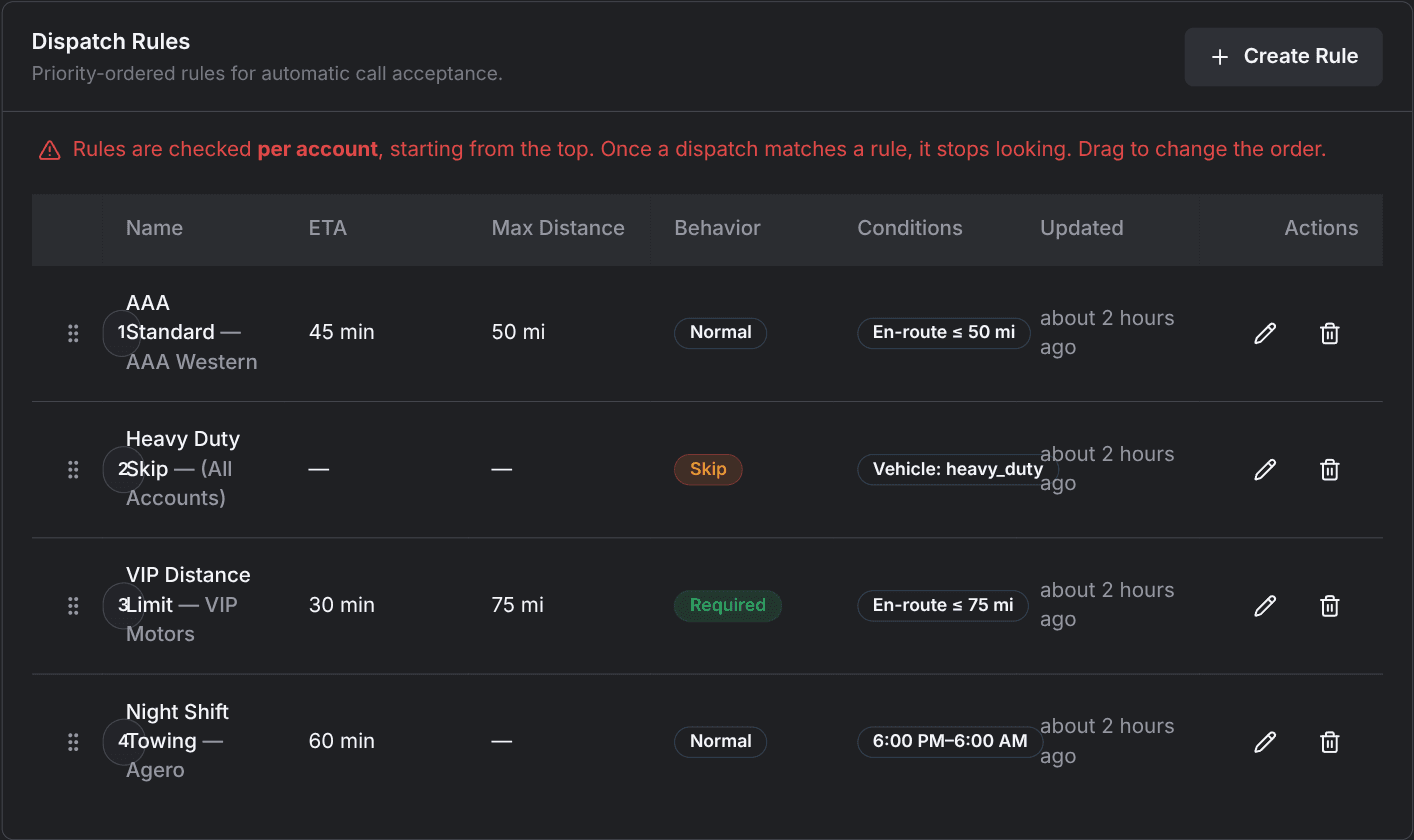
The Dispatch Rules card lists every rule in the order it's checked. Click Create Rule to add one, or Create First Rule when the list is empty.
| Column | Meaning |
|---|---|
| (unlabeled) | Drag handle and priority badge. The rule numbered 1 is checked first. |
| Name | The rule name, followed by the account name when the rule is scoped to one account. |
| ETA | Minutes promised on a match, or a dash for Skip rules. |
| Max Distance | The rule's maximum en-route distance in miles, or a dash. |
| Behavior | Skip, Required, or Normal. |
| Conditions | One chip per condition set on the rule, or "No conditions". |
| Updated | How long ago the rule last changed. |
| Actions | Edit and delete. |
Drag a row by its handle to move it; the new order saves on drop. Clicking a row opens it for editing. Deleting asks you to confirm and can't be undone.
Rules are read fresh for every request. A reorder, an edit, or a brand-new rule takes effect on the very next request that arrives, including while Digital Dispatch is in Live mode.
Creating a rule
The rule form has three tabs (Basic, Filters, and Actions) and a summary panel on the right that describes the rule in plain language as you fill it in. Save Rule saves all three tabs at once.
Basic
Who the rule applies to, what a match does, and the distance band it covers.
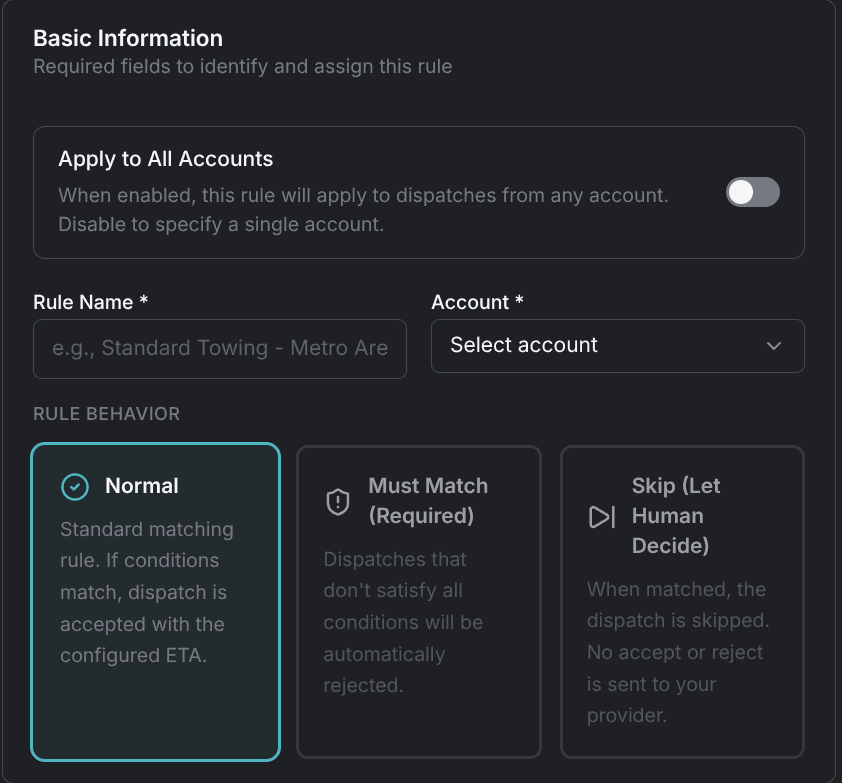
- Apply to All Accounts — when it's on, the rule applies to requests from any account and the Account field reads All Accounts (off by default). Turning it on clears the chosen account and disables Must Match (Required) for as long as it's on. A rule already set to Must Match falls back to Normal, while a Skip rule stays Skip.
- Rule Name (required) — for example, Standard Towing - Metro Area.
- Account (required unless Apply to All Accounts is on) — the single account whose requests this rule covers.
- Rule Behavior — Normal, Must Match (Required), or Skip (Let Human Decide), as three selectable cards.
| Behavior | What a match does | Choose it when |
|---|---|---|
| Normal | Accepts the request with the rule's ETA. | Most rules, where a miss should fall through to the rules under it. |
| Must Match (Required) | Accepts the request with the rule's ETA. | An account whose terms are absolute: anything outside them is a rejection. |
| Skip (Let Human Decide) | Leaves the request for your team — no accept or reject goes to your dispatch provider. | Anything a person should judge. |
Only Must Match changes what happens below it. Take one request that a rule doesn't match:
| Behavior of the rule that missed | What happens next |
|---|---|
| Normal | The next rule down is checked. |
| Skip (Let Human Decide) | The next rule down is checked. |
| Must Match (Required) | The request is rejected right away, and no rule below it runs. |
- ETA (minutes) (required for Normal and Must Match rules) — from 1 to 1440 minutes (24 hours), for example 45. The card is hidden for Skip rules, which carry no ETA.
- Distance Filters — three optional bands. Leave one blank for no limit;
decimals are allowed.
- Min En-Route Distance (mi) — the rule matches only when the pickup is at least this far from your base, for example 7.
- Max En-Route Distance (mi) — the rule matches only when the pickup is no farther than this from your base, for example 35. The form won't save a minimum that's equal to or greater than the maximum.
- Min Loaded Distance (mi) — the loaded leg, pickup to destination, must be at least this long, for example 5.
Filters
Where, what, and when the rule applies. Every filter you leave empty places no restriction.
-
Per-Rule Base Location — limits the rule to pickups within a driving distance of one address, which is useful when a rule covers a yard other than your main base.
- State — the state the address sits in.
- City — loads once a state is chosen.
- Street address — pick one of the suggestions to resolve the address.
- Max Driving Distance (mi) — above 0 and up to 500, for example 15, measured as driving distance rather than a straight line.
It's all or nothing: the form saves an address with a radius above 0, or an empty card. Clear removes a resolved address.
-
Service Type — one service, or Any service type to match them all (the default). The options are Appointment, Tow, Impound, Roadside, Lockout, Jumpstart, Tire Change, Fuel Delivery, Accident, Non-RV Extrication, and Winch Out.
-
Vehicle Types — any combination of Motorcycle, Light Duty, Medium Duty, and Heavy Duty. Any vehicle type is the default.
-
Vehicle Makes — a list of makes plus a mode of Include or Exclude (Include by default). Include matches only those makes; Exclude matches everything else.
-
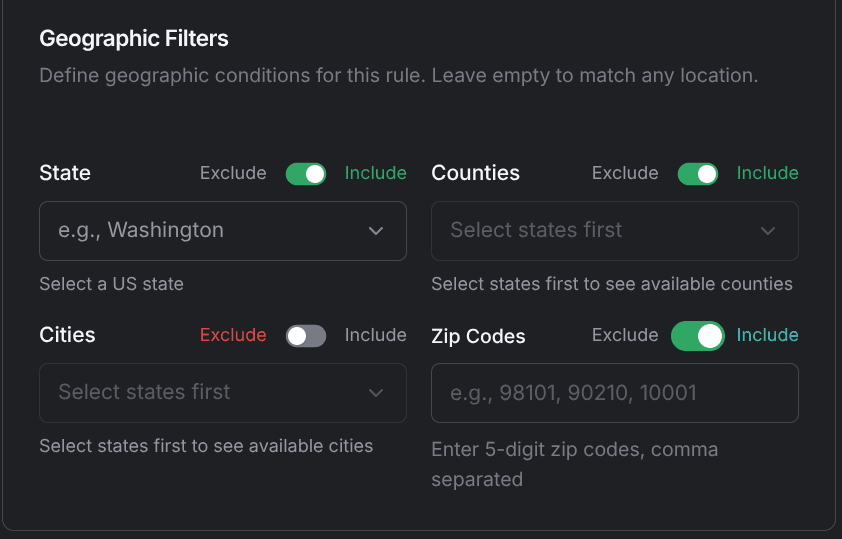
Geographic Filters — State, Counties, Cities, and Zip Codes, each with its own Include/Exclude switch (Include by default). Counties and cities load from the states you selected, so pick states first. Type ZIP codes as five digits separated by commas. Capitalization doesn't matter.
-
Time Window — 24/7 (All Day) keeps the rule active around the clock (the default). Turn it off to set a Start Time and End Time in your company timezone. Overnight spans work, so 6:00 PM to 6:00 AM covers a night shift.
Operating hours take priority over a rule's time window. Outside your operating hours no rules run at all, including rules with a window that covers the moment.
Actions
What gets sent on a rejection, plus two filters for less common setups.
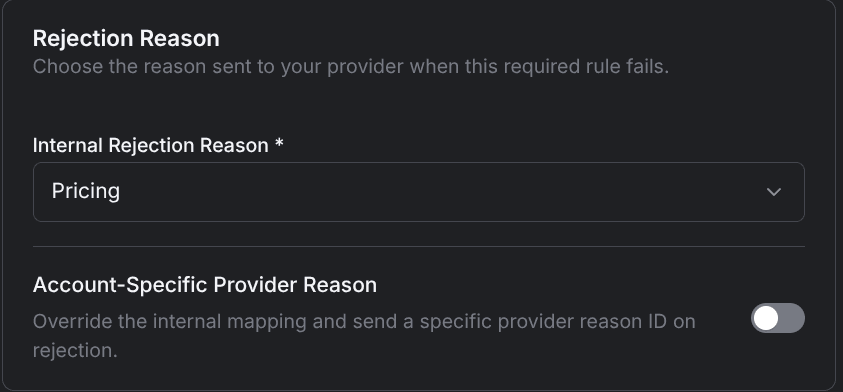
- Internal Rejection Reason (required for Must Match rules) — the reason recorded when this rule rejects a request. The card appears only for Must Match rules, and the list comes from your dispatch configuration rather than a fixed set. This name is what shows in the decision history.
- Account-specific provider reason — a toggle that pins one of your provider's own rejection reasons to this rule. With it on, you pick a Master Account (filled in automatically from the linked account when it's known) and a provider reason, the internal reason field is disabled, and the pinned reason is what your dispatch provider receives.
- Min Offer Amount ($) — the rule matches only when the request advertises an offer of at least this much, for example 50. A request with no offer, $0, or an amount below the floor doesn't match. Most accounts advertise no offer at all, so this belongs on a single account that bids. The form won't save it on an all-accounts rule.
- Location Text Filter — under Advanced Settings, matches text in the pickup address itself, which catches highways and landmarks that a state or city filter can't. Enter Text to Match, for example I-5, then a Match Mode: No filter, Contains, Starts with, or Does not contain. Capitalization doesn't matter.
How matching works
When a request arrives, Digital Dispatch builds one ordered list of rules and walks it from the top.
A request arrives for one of your accounts.
Digital Dispatch collects the rules scoped to that account together with every all-accounts rule, and sorts them by priority.
It takes the first rule in that list and asks whether all of the rule's conditions match the request.
If they all match, a Normal or Must Match rule accepts the request with its ETA, and a Skip rule leaves the request for your team. Either way, checking stops there.
If they don't all match, a Must Match rule rejects the request on the spot and nothing below it runs. Any other rule hands the request to the next rule down, and the check repeats.
When the list runs out with no match, the global default decides the request.
- First match wins — checking stops at the first rule whose conditions all match, and no rule below it runs.
- Priority is the only order — a rule scoped to the request's account and an all-accounts rule sit in the same list, sorted by their numbers alone. An account-specific rule gets no preference for being specific.
- Every condition on a rule has to match — the filters combine, so a rule with a state filter and a service type needs both.
- An empty filter places no restriction — a rule with no conditions at all matches every request that reaches it.
- No match falls through to the global default — the global default on the General tab decides the request instead.
Rule history
Open a rule for editing and a History button appears in the page header with a count of its revisions. Each entry shows what happened (Created, Updated, Deleted, or Restored), its version number, when it changed, and the change reason when one was recorded. The newest entry is marked current.
Hover an older revision and a restore button appears. Restoring loads that version back into the form as the rule's current settings.
A worked example
Action Towing accepts routine metro tows for its motor club account, holds one account to a tight radius, and wants a person to handle anything overnight. Their global default is Reject Automatically.
| # | Rule | Behavior | Conditions | ETA |
|---|---|---|---|---|
| 1 | Overnight — all accounts | Skip (Let Human Decide) | Time window 10:00 PM to 6:00 AM | — |
| 2 | AAA Western metro | Normal | Account AAA Western; Service Type Tow; Max En-Route Distance 50 mi | 45 min |
| 3 | Bob's Garage terms | Must Match (Required) | Account Bob's Garage; Max En-Route Distance 25 mi; rejection reason Distance | 60 min |
- A tow from AAA Western at 2:00 PM, pickup 30 miles out: rule 1's time window doesn't match, and rule 2 matches on all three conditions. The request is accepted with a 45-minute ETA.
- The same request at 11:00 PM: rule 1 matches on the time window, so the request is skipped and left for the team. Nothing below rule 1 is checked.
- A tow from Bob's Garage at 9:00 AM, pickup 40 miles out: rule 1 doesn't match, and rule 2 belongs to another account. Rule 3 matches the account but fails the 25-mile limit, so the request is rejected on the spot with the reason Distance.
- A roadside call from VIP Motors at noon: no rule in the list covers that account, so the global default applies and the request is rejected automatically.
Before relying on a setup like this, read Avoid rule traps.